
The Editor
Updated 2 days ago
By CutCap AI Team
The Video Editor
The CutCap AI Editor is a powerful, browser-based workspace designed for speed and precision.
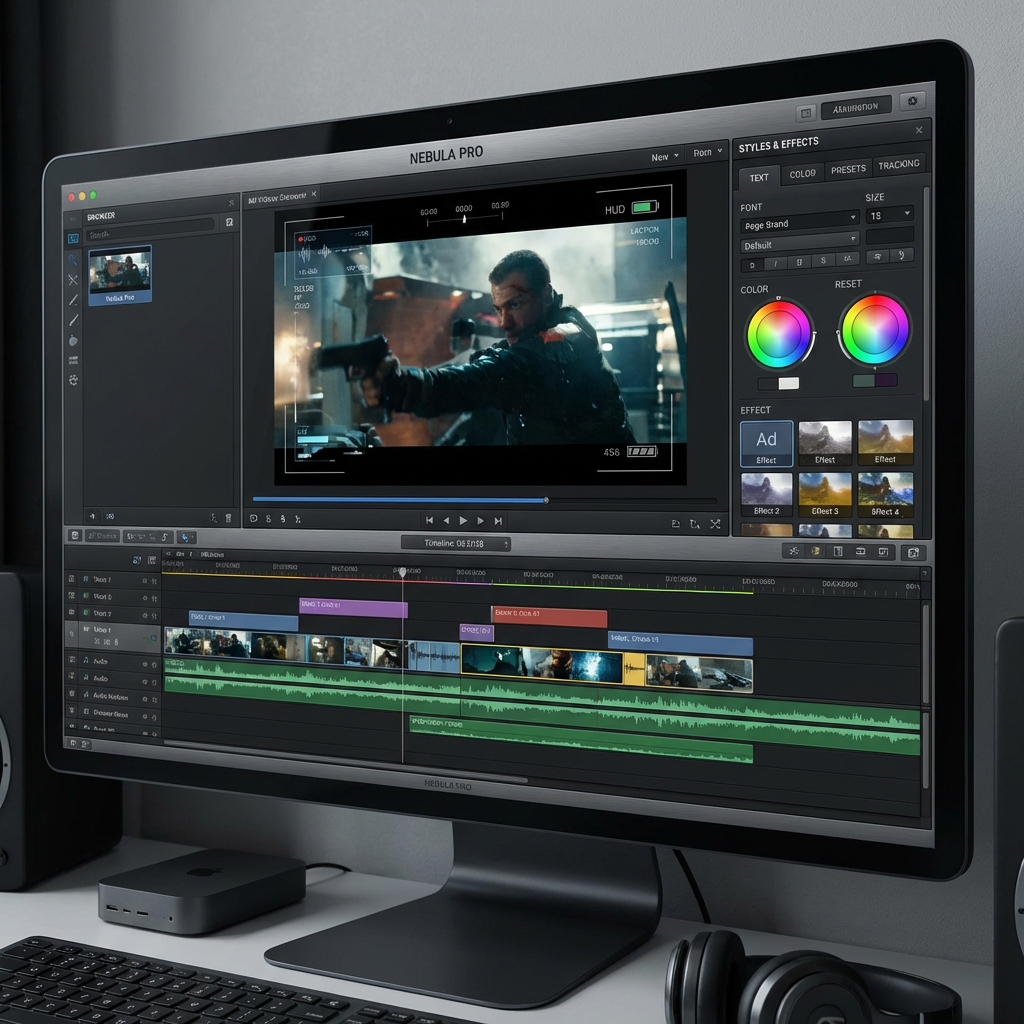
Workspace Overview
1. Header Toolbar
At the top of the editor, you'll find essential controls:
- Title Input: Rename your project on the fly.
- Revisions: Access your project's version history and rollback if needed.
- Undo / Redo: Quickly revert or re-apply changes (
⌘ + Z/⌘ + Y). - Save & Export: Save your progress or export your final video.
2. Left Sidebar Tools
The left panel houses all your creative assets and AI tools:
- Captions & Style: Customize the look of your subtitles with presets or manual adjustments.
- AI Power Tools: Advanced AI features to enhance your video.
- Music & AI Voiceover: Add background tracks or generate AI speech.
- Audiogram: Create audio-reactive visuals.
- Brand Kit: Access saved brand assets and logos.
- B-rolls & Transitions: Add cutaways and smooth transitions.
- Images & Text Overlay: Overlay static graphics and custom text.
- Project Assets: Manage files uploaded specifically for this project.
3. Center Canvas (Preview Viewport)
Located in the center, this shows a real-time preview of your video. What you see is exactly what will be rendered.
- Responsive Ratios: Toggle between aspect ratios like 9:16 (TikTok/Reels), 1:1 (Instagram), and 16:9 (YouTube).
- Sizing Fits: Adjust how your video scales within the canvas.
- Media Controls: Play, pause, and preview your composition.
4. Right Transcript Panel
Manage your text and captions efficiently:
- Interactive Transcript: Click any word to jump to that part of the video.
- Inline Editing & Split Blocks: Correct typos or split text blocks seamlessly.
- Subtitle Utilities: Upload or download SRT/VTT files and configure word breaks.
5. Bottom Timeline Panel
A comprehensive multi-track grid for precise editing:
- Tracks: Manage separate layers for Captions, Audiogram, and Videos.
- Trimming & Seeking: Adjust clip durations and seek through your project frame by frame.
Keyboard Shortcuts
Space— Play / Pause⌘ + Z— Undo Change⌘ + Y— Redo Change← / →— Seek frame by frame
Safe Zones
When creating for TikTok or Instagram, keep your captions in the middle 60% of the screen. Our Aspect Ratio presets automatically help you visualize these safe zones.
Next: Deep dive into Subtitles