
Rendering & Export
Updated 2 days ago
By CutCap AI Team
Rendering & Export
The final step in your workflow is converting your project into a high-quality video ready for social media.
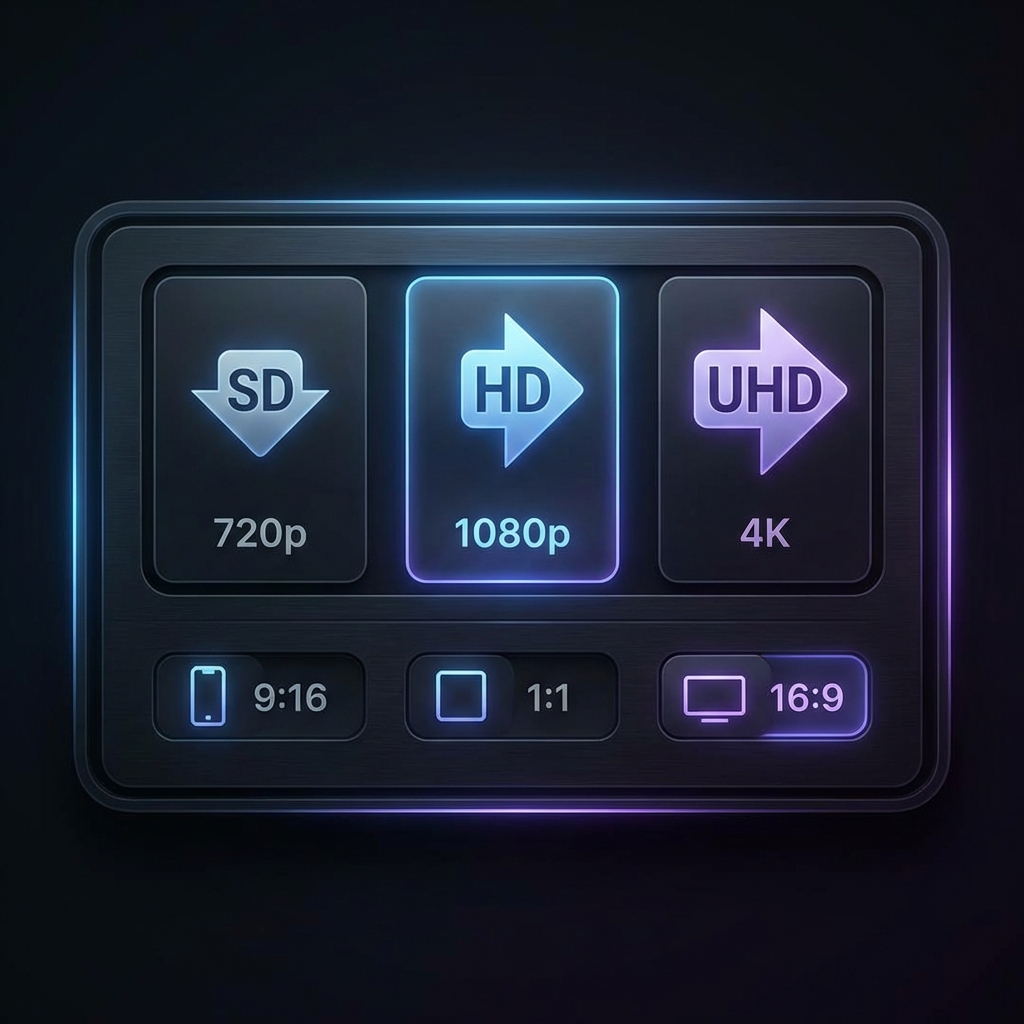
Export Quality
Choose the resolution that fits your needs:
- 720p (HD): Balanced quality and fast rendering.
- 1080p (Full HD): The standard for high-quality social content.
- 2K (Quad HD): Perfect balance between file size and premium quality.
- 4K (Ultra HD): Maximum sharpness for premium content (Pro/Agency only).
Aspect Ratio Selection
Before you hit export, ensure your video is in the correct format:
- 9:16 (Vertical): Built for TikTok, Reels, and Shorts.
- 1:1 (Square): Perfect for Instagram Feed and LinkedIn.
- 16:9 (Landscape): Best for standard YouTube videos.
Cloud Rendering
- Your computer stays fast while we do the heavy lifting.
- You can close the tab—we'll notify you when it's done.
- You get a permanent download link valid for 30 days.
Troubleshooting Exports
- Failed Render? Ensure your source video is a standard format like MP4.
- Missing Subtitles? Make sure you haven't deleted all segments in the editor.